Learning Objectives
-
Learn to encapsulate reusable processes as Subprocesses for easy triggering and calling through different methods.
-
Learn how to write approval operation details into a Worksheet.
Scenario Case
After MEGA Company employees submit reimbursement forms, the forms need to go through a financial approval process. In actual reimbursement scenarios, employees sometimes fill in part of the content first and submit for approval only after confirming the information is correct. Based on these needs, they hope the application can support the following:
-
After creating a reimbursement form, employees can either submit it for approval directly or create the form first and manually initiate the approval after verifying the information.
-
When the reimbursement approval is rejected, employees can modify the original reimbursement form and resubmit it instead of creating a new one, avoiding duplicate filling and saving time and effort.
-
During the approval process of the reimbursement form, the application can fully record the Approval Log for each step, including the operator, operation time, and processing result, to facilitate subsequent traceability and auditing.
Operation Guide
Configure New Trigger Workflow
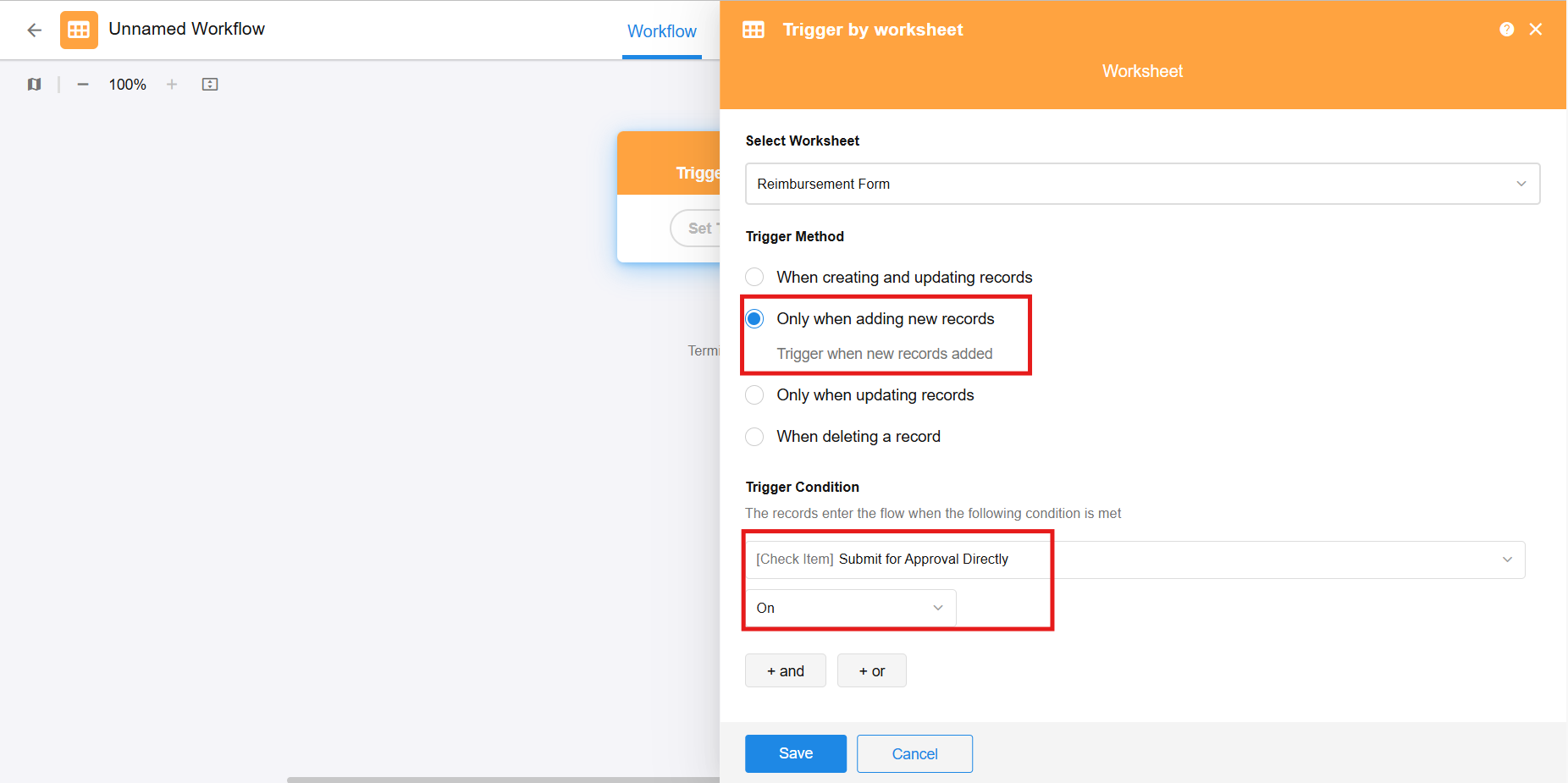
A Check Item "Submit for Approval Directly" has been preset in the Reimbursement Form Worksheet. When a new reimbursement form is created and this Check Item is enabled, the approval flow needs to be triggered.
Create a workflow triggered by worksheet. Trigger the workflow when a reimbursement form is newly added and the "Submit for Approval Directly" check item is enabled.
Add Subprocess
To enable reuse of the approval process, directly add a Subprocess node and set the data object as the Reimbursement Form.
Add Approval Flow in the Subprocess
-
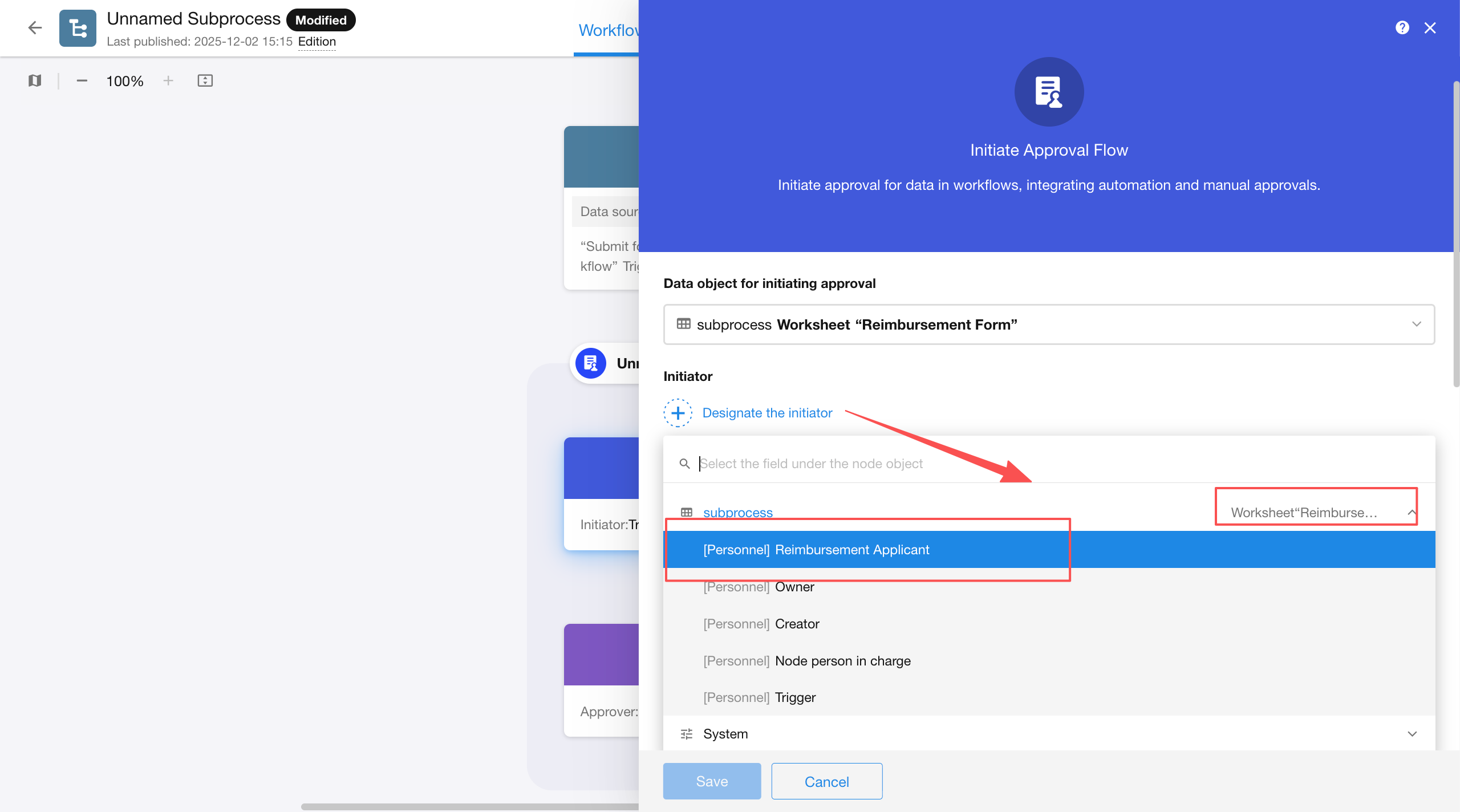
Add an Initiate Approval Flow node in the subprocess, and set the initiator of the approval flow as the reimbursement applicant.
-
Configure Data Update for the approval initiation node to write the manual node operation details of the approval flow into the Approval Log worksheet associated with the Reimbursement Form.
-
Set the Approver as the Financial Role in the Application Role.
-
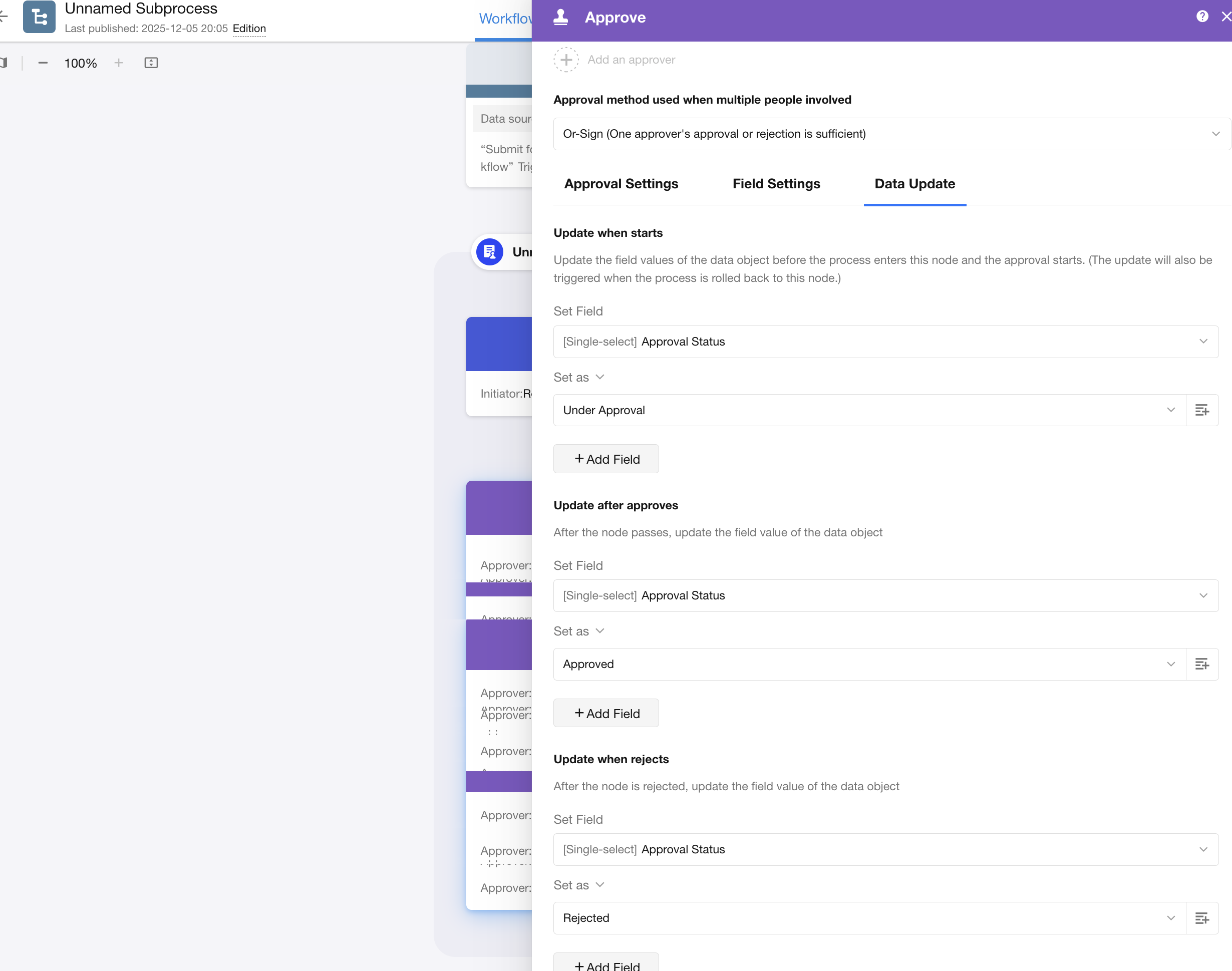
Set Data Update rules: update the Approval Status to "Under Approval" when the approval node starts, "Approved" after approval is passed, and "Rejected" after approval is denied.
-
Publish the Subprocess, enable "Show Approval System Fields" and "Show Approval Details"; then publish the main process.
Configure Workflow Triggered by Submit for Approval Button
-
Add a Custom Action for "Submit Approval". This button can be clicked in the following cases:
a. When creating a reimbursement form, the "Submit for Approval Directly" Check Item is disabled, the approval has not been submitted yet, and the Approval Status = Pending Approval.
b. The reimbursement form is rejected, and the Approval Status = Rejected.
-
Edit the workflow triggered by the Custom Action, add a Subprocess node, and select the data object as the reimbursement form triggered by the button. At this time, select an existing process to directly reuse the previously created Reimbursement Form Approval Subprocess.
Hands-on Practice
Now, click the "Open the Practice App" button in the upper right corner of the page to access the hands-on application designed for this course, and start practicing!