Learning Objectives
-
Master the configuration methods of This Table Association and Hierarchy View.
-
Master the configuration method of Cascading Fields to realize the selection effect of multi-level expense accounts in reimbursement details.
-
Master how to batch import data source records required for cascading fields through Import from Excel.
Scenario Case
During event organization, MEGA Company has a large number of expenses such as travel, entertainment, and office expenses that need to be reimbursed. To facilitate financial statistics and subsequent analysis, the company divides expense accounts into a multi-level structure, for example:
-
Level-1 Accounts: Travel Expenses, Office Expenses, Marketing Expenses...
-
Level-2 Accounts: Travel Expenses/Transportation Expenses; Travel Expenses/Accommodation...
-
Level-3 Accounts: Travel Expenses/Transportation Expenses/Air Ticket; Travel Expenses/Transportation Expenses/Train Ticket...
MEGA Company hopes that when employees fill out the "Reimbursement Form", they can:
Select from the company's preset accounts in a "step-by-step expansion" manner: first select [Travel Expenses] → then select [Transportation Expenses] → then select [Air Ticket], instead of struggling to find [Travel Expenses/Transportation Expenses/Air Ticket] in a long dropdown list.
Excel Download
An Excel sample is provided below, containing various expense accounts required for MEGA Company's expense reimbursement, which has been organized into a format suitable for multi-level data import. Please download it in advance to facilitate subsequent practical exercises.
Expense_Account_Import.xlsx
Operation Guide
Configure This Table Association for Expense Category
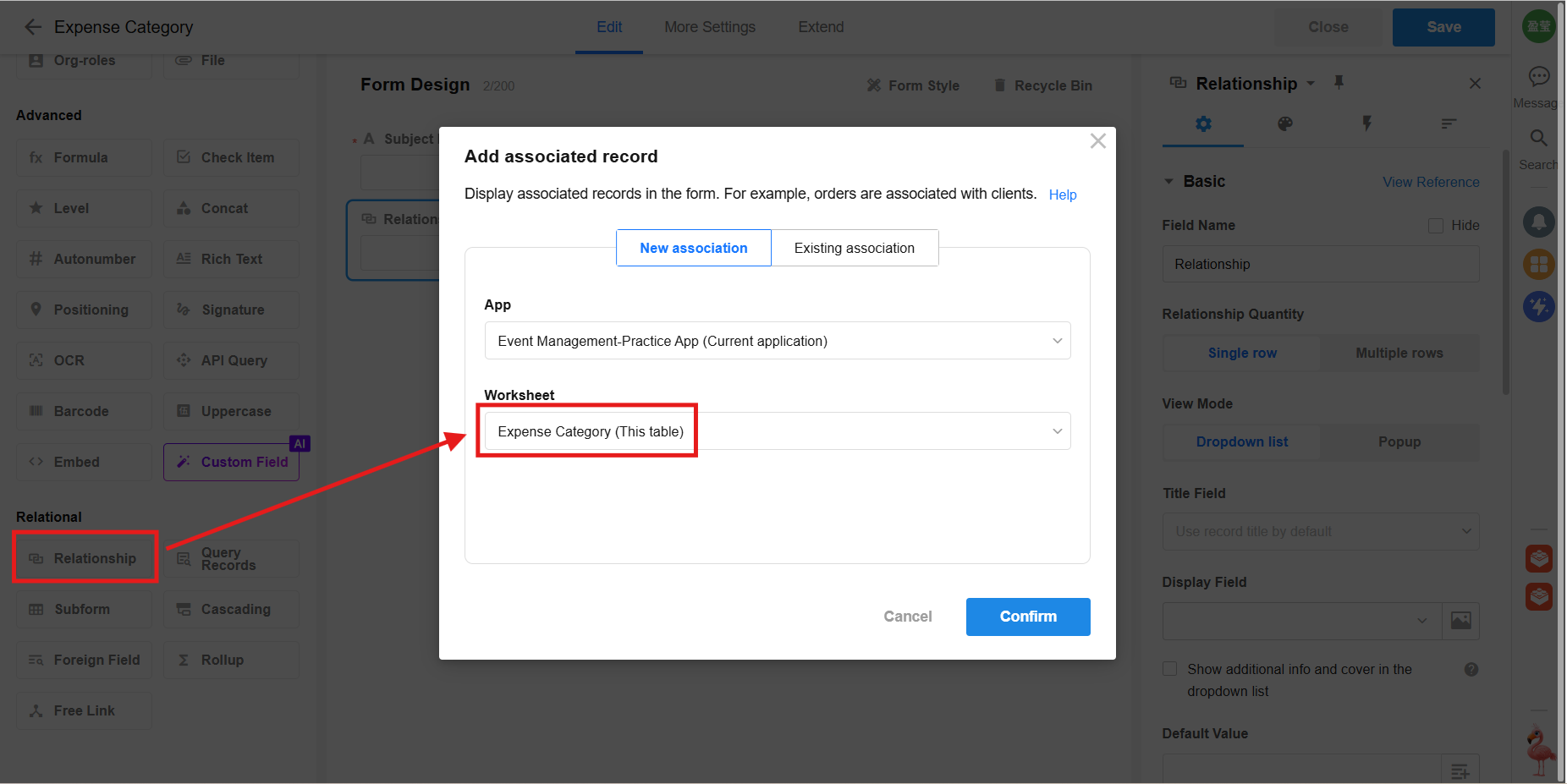
In the Expense Category worksheet, add an Associated Records Field and select to associate Expense Category (this table). After adding the association to the same table, two Associated Records Fields of "Parent" and "Child" will be automatically generated. Rename them to Parent Account and Sub-account respectively, and set appropriate Display Fields.
Add Hierarchy View for Expense Category
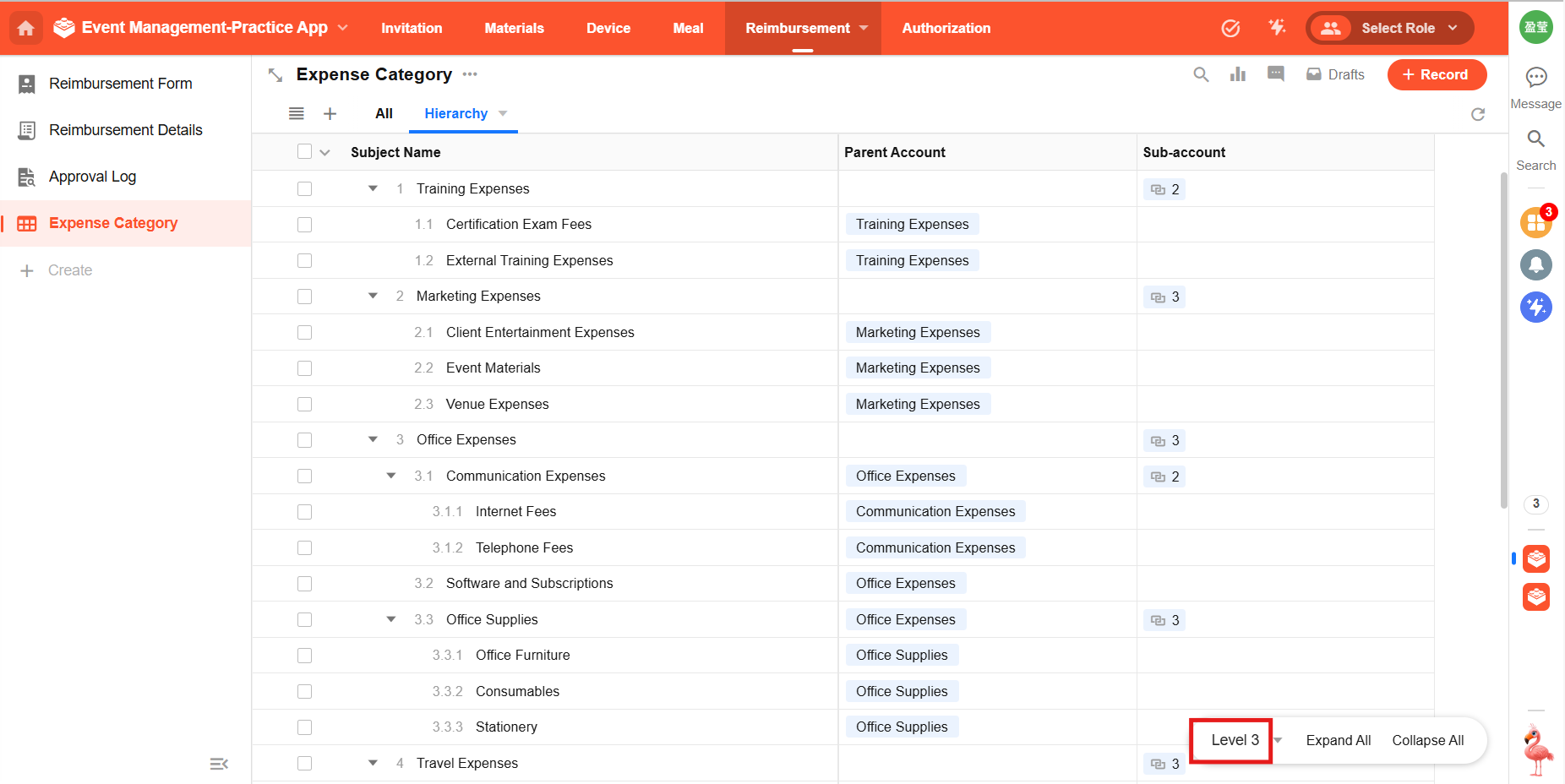
Next, in the Hierarchy View of the Expense Category worksheet, configure the association field of this form and view mode (Tree Table is optional).
In the Tree Table View, you can add some test data.
Add Cascading Field in Reimbursement Details
Add a Cascading Selection Field in the Reimbursement Details worksheet, select the Hierarchy View of the Expense Category worksheet just configured as the data source, and you can check "Show full path of selection" to display the hierarchy of reimbursement category more intuitively.
When creating a Reimbursement Form, select the expense category in the Reimbursement Details, and you can see the test data just created.
Import Existing Expense Accounts via Excel
Next, you need to replace the test data with MEGA Company's existing expense accounts. First, delete the manually added test data.
Import the downloaded Excel data of expense accounts. First, import Level-1 Accounts, where the "Parent Account" of Level-1 Accounts is blank.
Then import Level-2 Accounts, where the "Parent Account" is the account name of Level-1 Accounts. Establish data mapping, and the parent account will be automatically associated after import.
Similarly, import Level-3 Accounts, where the "Parent Account" is the account name of Level-2 Accounts.
Final Effect
When employees fill out the Reimbursement Form, they can select from the company's preset accounts in a step-by-step expansion manner.
Hands-on Practice
Now, click the "Open the Practice App" button in the upper right corner of the page to access the hands-on application designed for this course, and start practicing!