Learning Objectives
-
Understand the difference in implementation logic between issuing a single outbound detail and multiple outbound details in the outbound scenario.
-
Use subprocesses to implement batch data processing, i.e., executing the same logic for multiple pieces of data, which requires separate judgment and processing based on the content of each piece of data.
Scenario Case
To support the company's growing event scale, MEGA Company decides to digitally transform its event material management. They hope to realize the inbound and outbound management of materials, with specific requirements including:
-
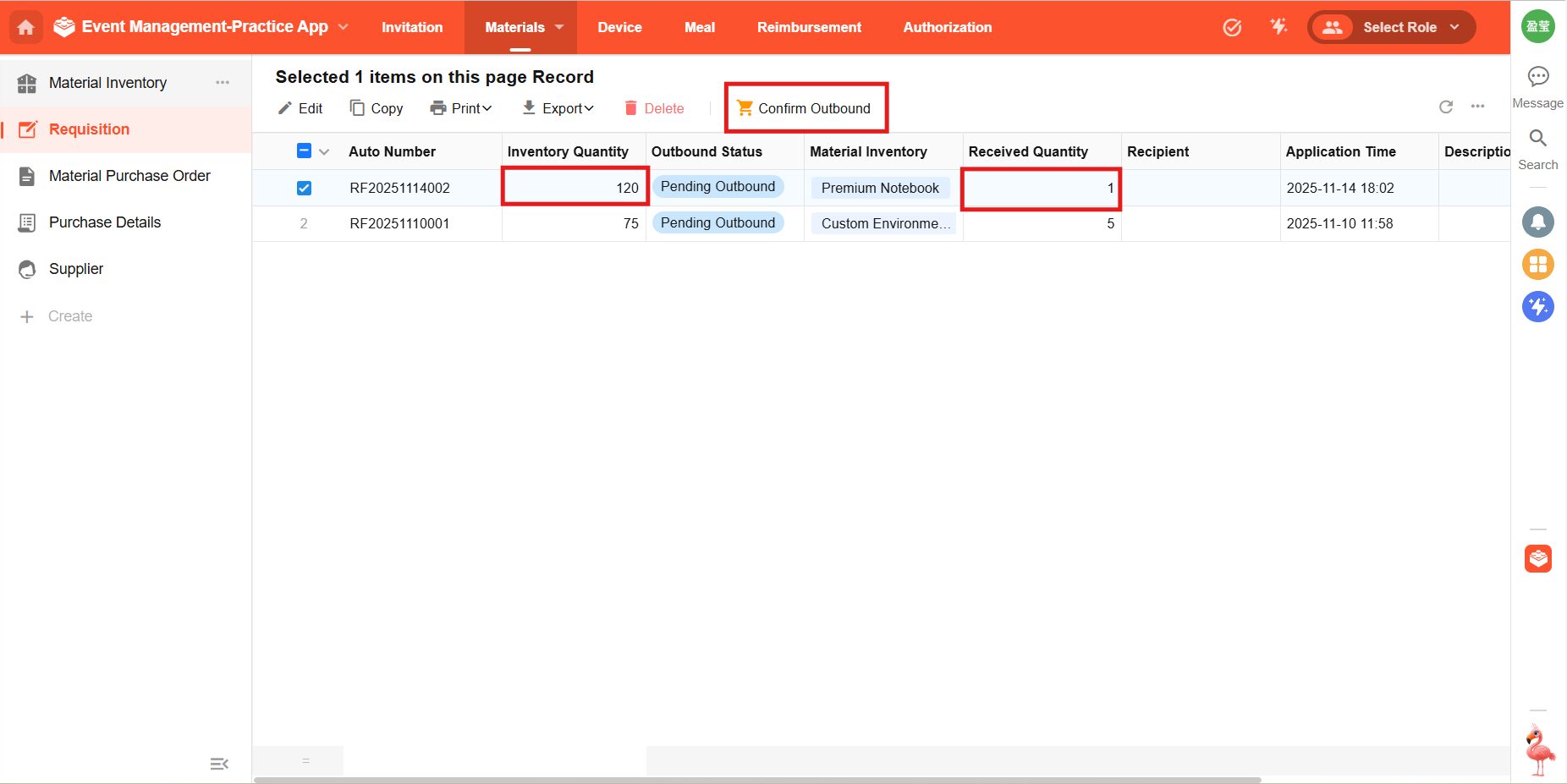
Requisition for withdrawal: Staff initiate a requisition, usually withdrawing only one type of material each time. After confirming the requisition, the app automatically deducts the inventory and updates the status of the collection order to "Outbound Completed".
-
Purchase Stock-in: Logistics personnel conduct bulk purchases for replenishment, buying multiple types of materials each time (i.e., one purchase order contains multiple material purchase details). After confirming inbound, the app automatically and in batches updates the inventory of all related materials and marks the warehousing status as "stored".
Operation Guide
Requisition for Collection (One Item Each Time)
Workflow Design
-
Add the "Confirm outbound" button and enter the workflow configuration page.
We need to update the inventory quantity in the Material Inventory worksheet. However, there is no "Material Inventory" data object on the current workflow canvas, so we need to use the [Get Single Data] node to obtain it first. The requisition is directly associated with a single material inventory record, so we can directly obtain the "Material Inventory" data object by getting associated records.
-
Add an "Update Record" node to reduce the stock quantity in the material inventory worksheet by the received quantity.
-
Update the outbound status of requisition to "outbound completed".
Implementation Effect
Click the "Confirm Outbound" button, the inventory quantity will be reduced by the received quantity, and the outbound status will be updated to "Outbound Completed".
Purchase Stock-in (Multiple Purchase Details in One Purchase Order)
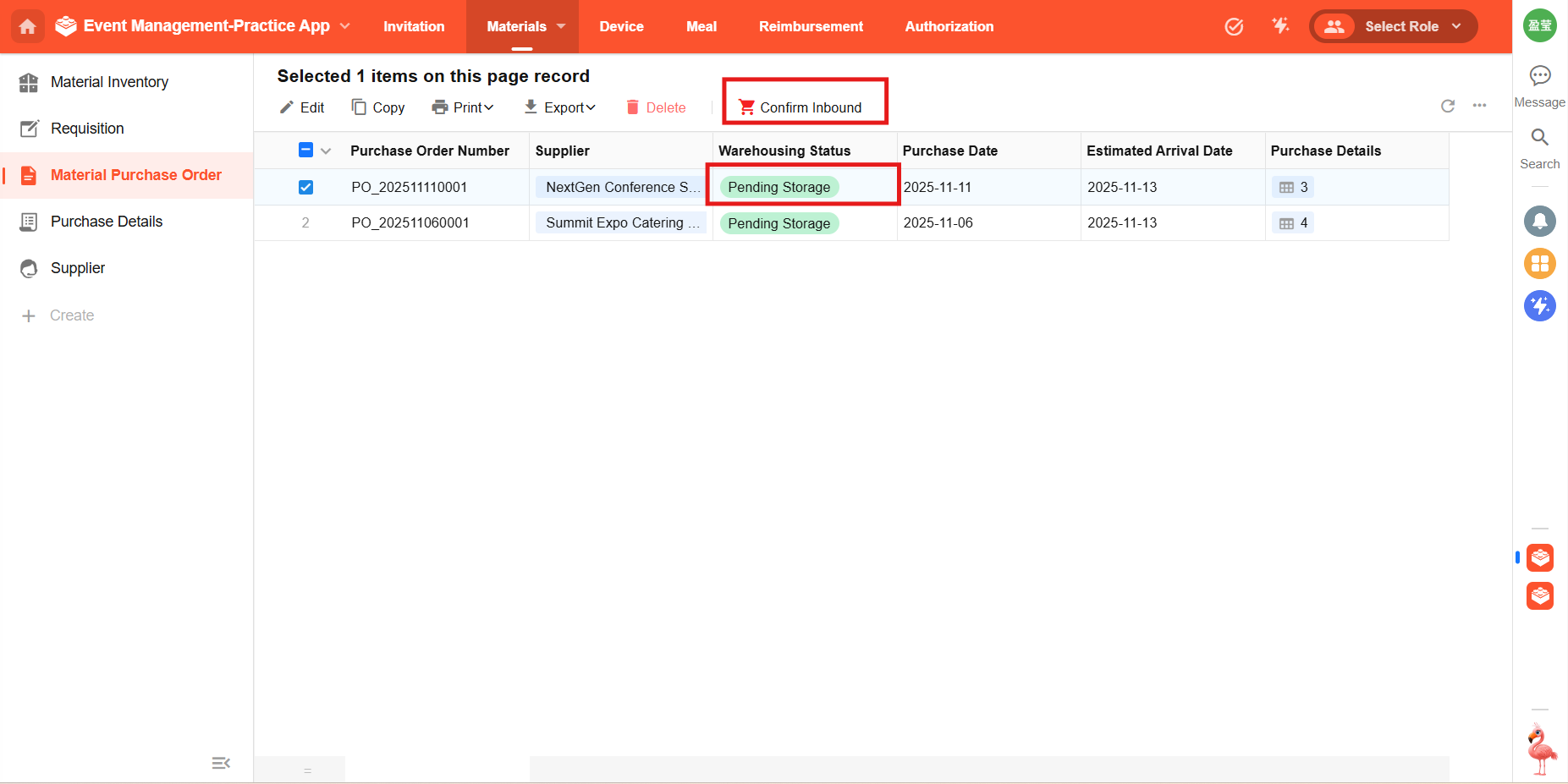
In a purchase order, after the purchaser clicks the [Confirm Inbound] button, the inventory quantity of each material in the purchase details needs to be updated separately. Since the Purchase Quantity of each detail may be different, it is impossible to complete all inventory updates at once through a single update node. At this time, a new node,subprocess, needs to be introduced.
Subprocess Principle
When we execute [Confirm Inbound] for a purchase order, what we essentially need to do is:
Read the purchase details one by one, find the material inventory record corresponding to each detail, and then add the purchase quantity to the material's inventory quantity.
It can be seen that the processing and judgment logic for each purchase detail is the same:
Find the corresponding material inventory → Inventory Quantity + Purchase Quantity
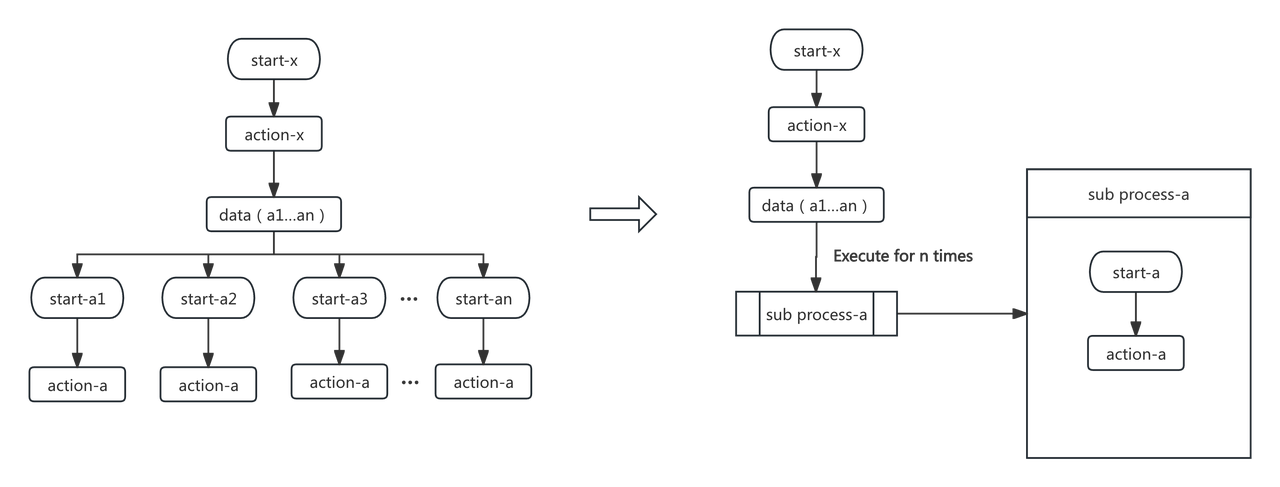
Therefore, we can encapsulate this set of general logic for "updating inventory" into a subprocess, and then use 「multiple purchase details」 as the data source of the subprocess.
When executing the [Confirm Inbound] main process, the workflow will split this batch of purchase details for processing:
Each purchase detail enters the inventory update subprocess separately, and the subprocess will be executed repeatedly.
For example: If a purchase order has 10 details, when the purchaser clicks [Confirm Inbound] once, the inventory update subprocess will be executed 10 times, processing one detail at a time.
The following figure explains the principle of subprocesses:
When the main process obtains a batch of data (a1…an) at one time and each piece needs to execute the same logic, this logic can be encapsulated into a subprocess. The main process is only responsible for passing multiple pieces of data to the subprocess, and the subprocess is called repeatedly n times, processing only one record each time. This realizes "one batch of data, the same logic, multiple calls".
Workflow Configuration
-
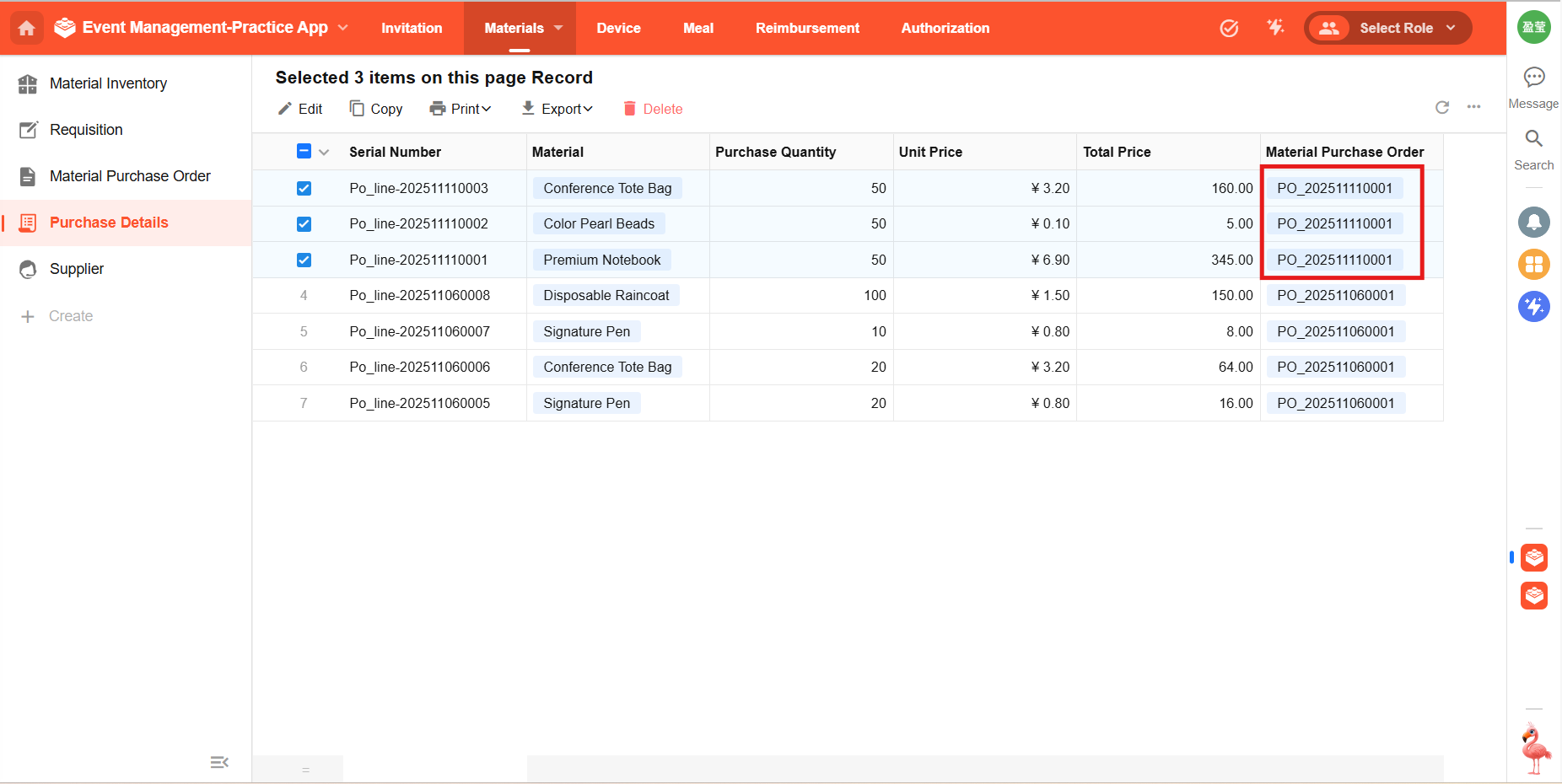
Enter the confirm inbound workflow configuration interface. Since one purchase order has multiple purchase details, select "Get Multiple Data" and obtain the multiple purchase details associated with the purchase order by getting associated records.
-
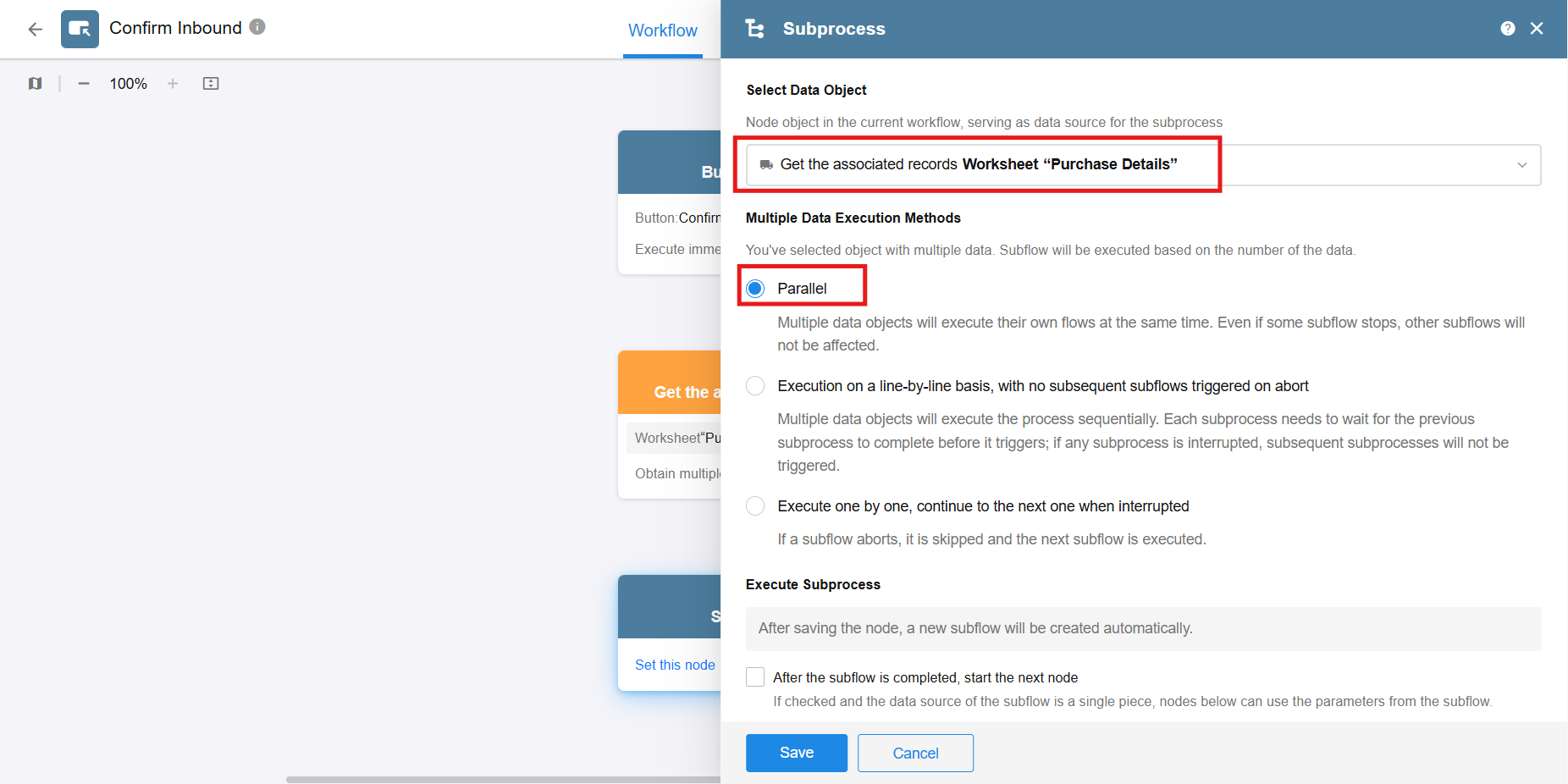
Use the obtained multiple purchase details as the data source of the subprocess. There is no strict order requirement between multiple purchase details, so select the parallel method for higher execution efficiency.
-
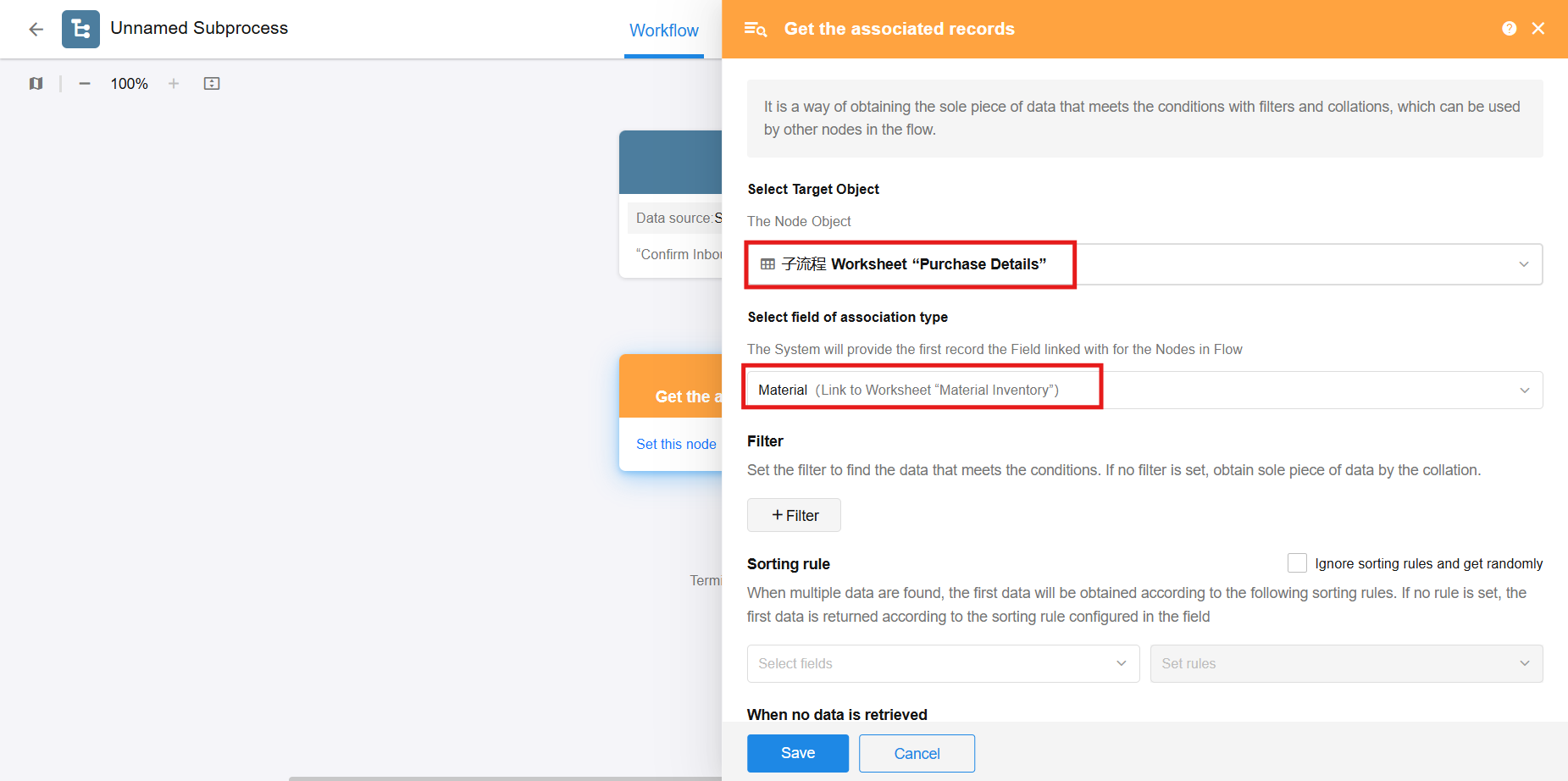
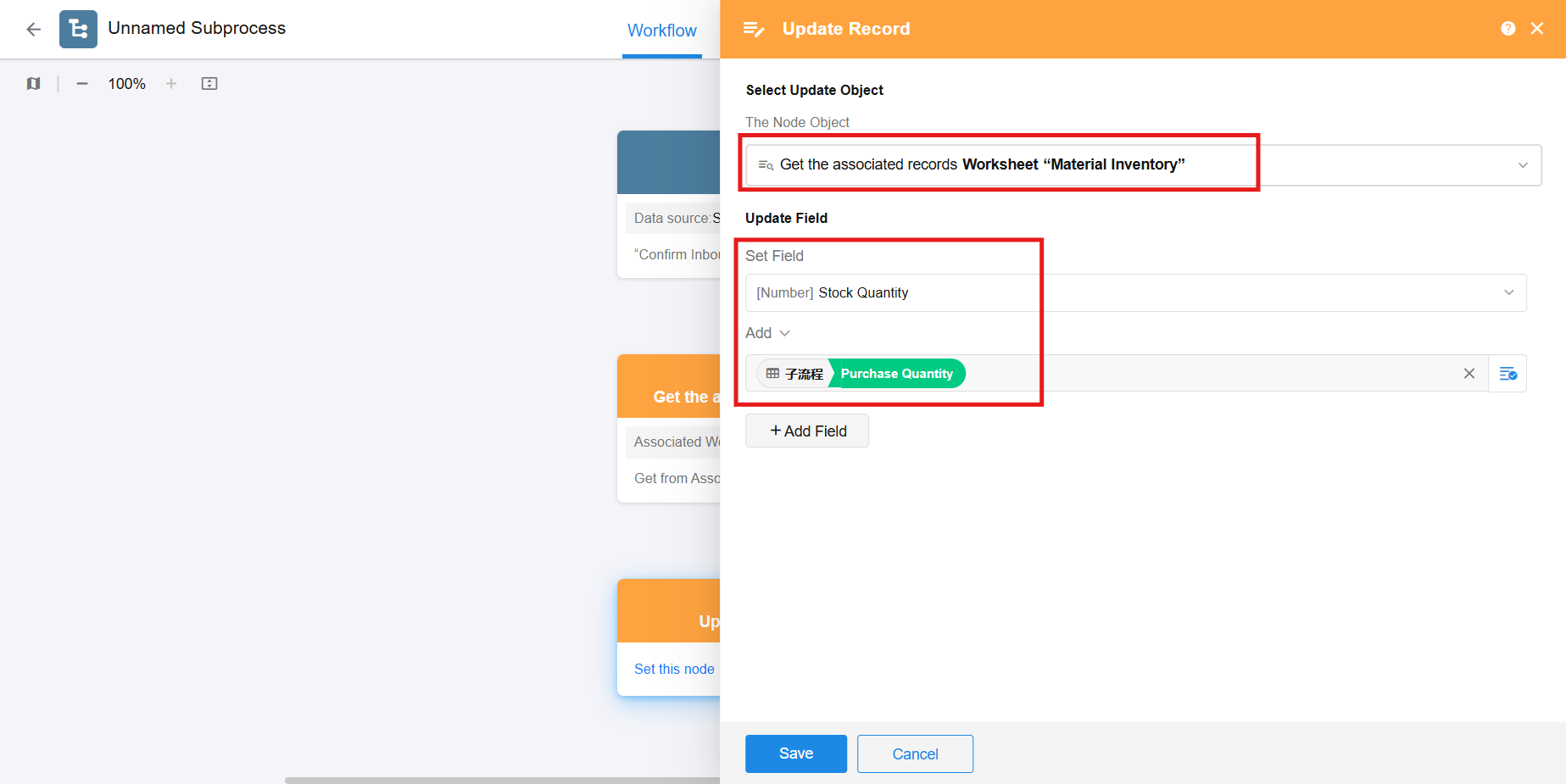
The data source entering the subprocess each time is a single purchase detail. Inside the subprocess, the material associated with the purchase detail can be obtained through the "Get Single Data - Get the associated Records" node.
-
Update the material inventory quantity by adding the purchase quantity to the original inventory quantity.
-
Outside the subprocess (i.e., in the "Confirm Inbound" main process), update the warehousing status to "Stored".
Implementation Effect
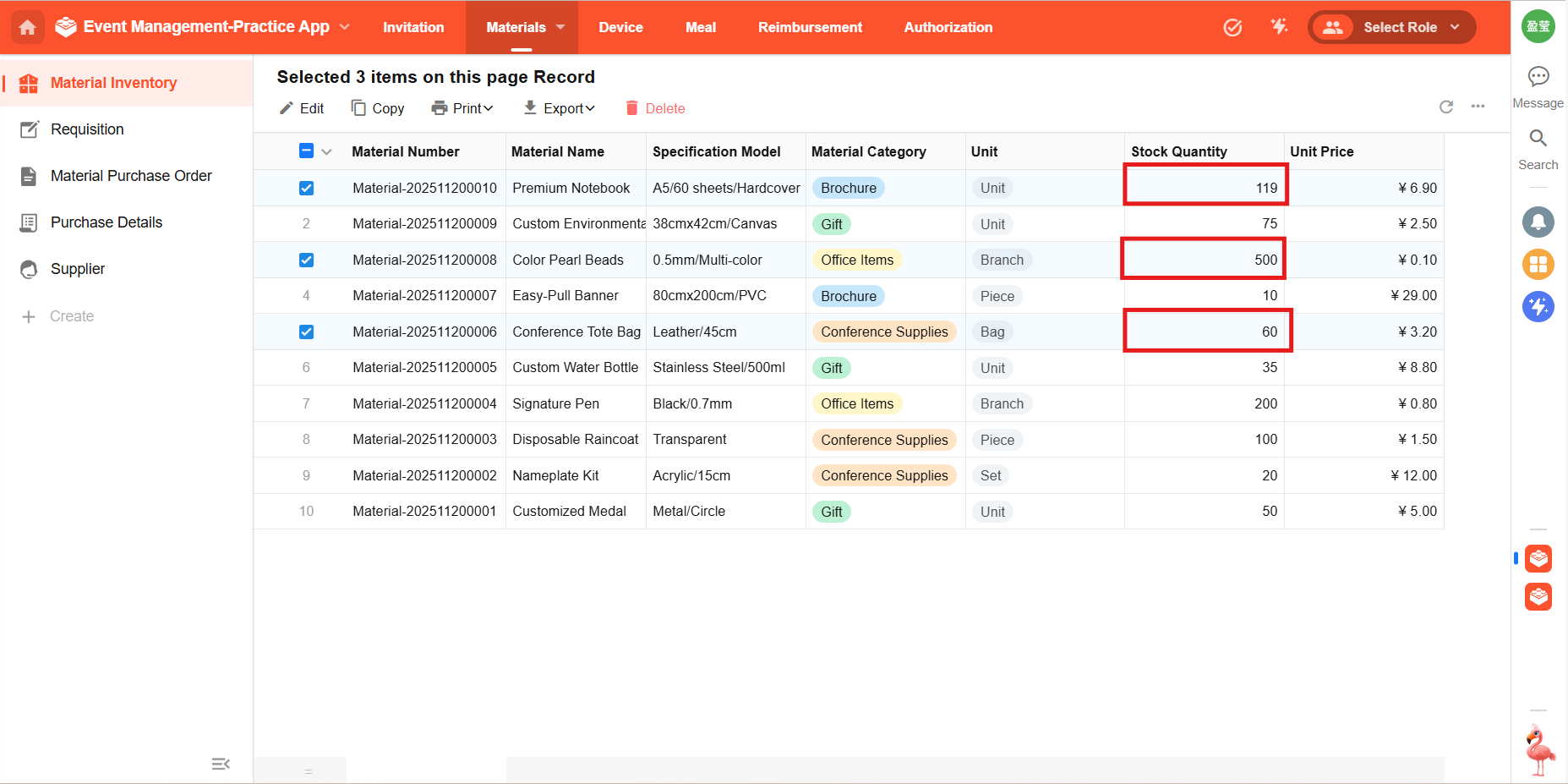
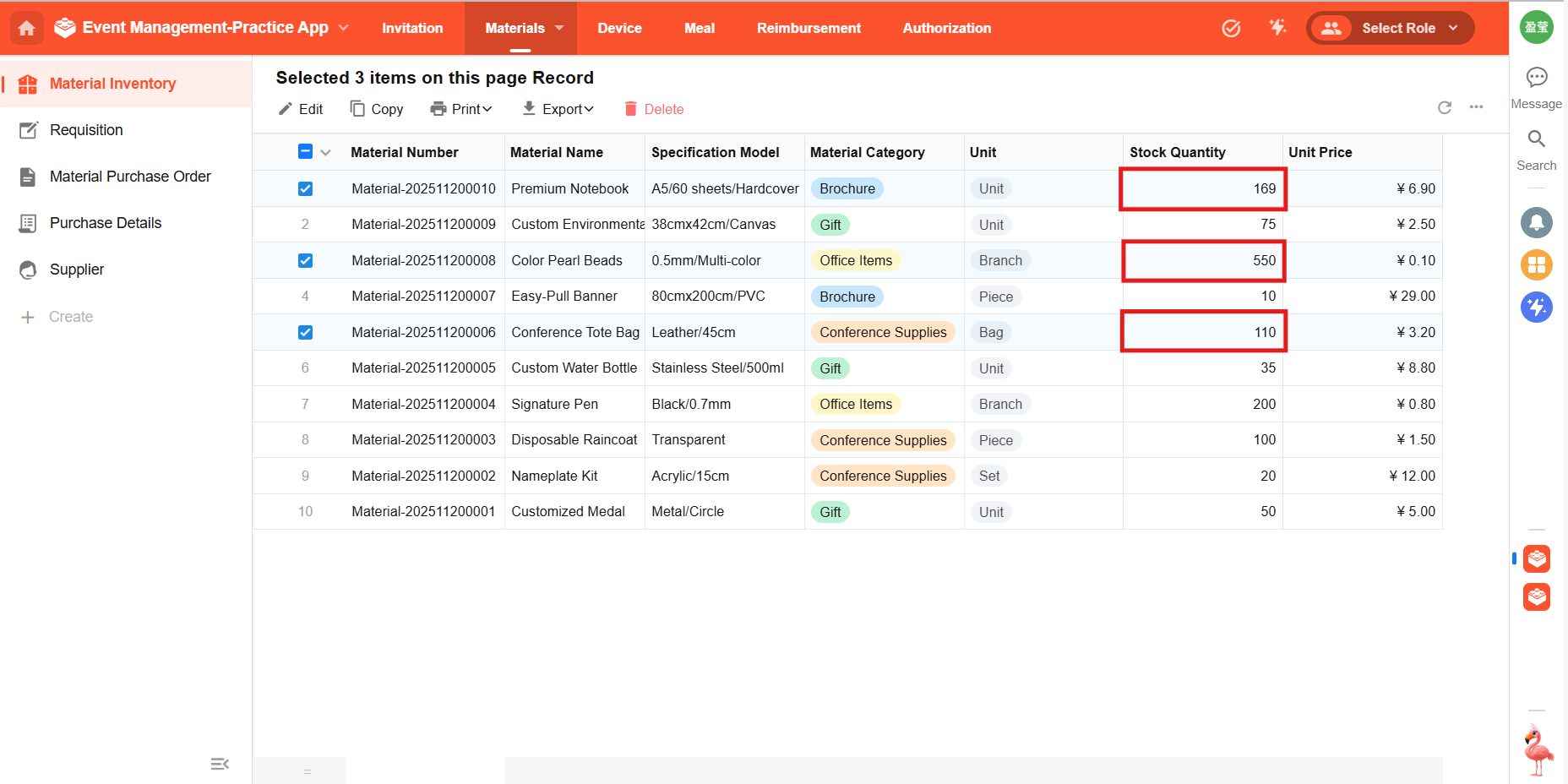
There are 3 purchase details under this purchase order. After clicking "Confirm Inbound", the inventory quantity is increased by the corresponding purchase quantity respectively, and the warehousing status is updated to "Stored".
Hands-on Practice
Now, click the "Open the Practice App" button in the upper right corner of the page to access the hands-on application designed for this course, and start practicing!